Evidence tiers: [Verified] = backed by official documentation or credible source links; [Community Consensus] = shared user experience across the community, not officially confirmed; [Unverified / Speculative] = inferred or not yet verified—treat with caution.
🧭 This guide covers using a VPS as a standard application server: deploying a self-hosted API gateway (Deploying and Using New API: Channels, Tokens, Quotas, and Backups), running a persistent assistant like OpenClaw (Getting Started with OpenClaw: Isolated Environments, Configuration, and Security Boundaries), hosting web backends, or setting up isolated development environments. It does not cover building cross-border network proxies or circumventing regional access restrictions.
1. What a VPS Is and What It Is Used For
[Community Consensus] A VPS (Virtual Private Server) is a virtualized Linux machine allocated to you inside a cloud provider's data center, complete with its own public IP address, SSH access, and monthly or pay-as-you-go billing.
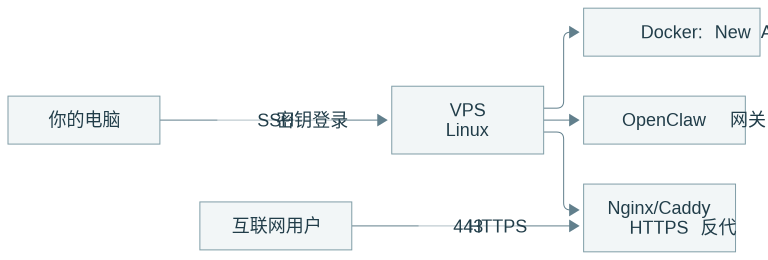
1.1 When You Need a VPS (and Simpler Alternatives)
| Your Goal | Simpler Alternative |
|---|---|
| Host a static website or blog | Static site hosting (Domains and Static Sites: Publishing, DNS, and HTTPS)—no server maintenance needed |
| Run New API strictly for yourself on one machine | Run locally on localhost without exposing it to the public internet |
| Run long-horizon coding Agent tasks | Codex Web or official cloud Agents (Codex Cloud Tasks and ChatGPT: From Requirements to Code Review) |
| Run a 24/7 persistent bot or an internal team gateway | ✅ A VPS is a good fit |
2. Key Factors When Choosing a VPS [Community Consensus]
| Dimension | What to Look For |
|---|---|
| Region | Choose a region close to your users that satisfies data compliance requirements; servers located in mainland China require an ICP filing before serving public websites (see Domains and Static Sites: Publishing, DNS, and HTTPS) |
| Specs | For entry-level gateways or bots: 1–2 vCPUs and 2–4 GB RAM are typically sufficient (at least 2 GB RAM is recommended when running Docker + PostgreSQL) [Unverified: depends on workload] |
| Operating System | Pick Ubuntu LTS or Debian Stable—they have the broadest community documentation |
| Billing Model | Flat monthly vs. hourly/pay-as-you-go; watch out for outbound bandwidth overage charges |
| Snapshots / Backups | Check whether automated snapshots are supported and whether they cost extra |
| Acceptable Use Policy | Verify permitted workloads (most providers strictly prohibit bulk mail, crypto mining, etc.) |
3. Initial VPS Setup and Security Hardening
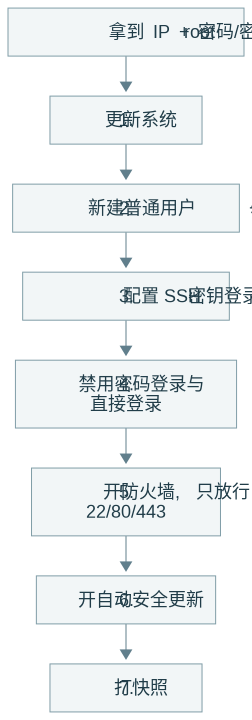
The commands below use Ubuntu / Debian as an example [Verified: Ubuntu Server Docs, UFW]:
# 1. Update packages
sudo apt update && sudo apt upgrade -y

# 2. Create a non-root user with sudo privileges
sudo adduser alice
sudo usermod -aG sudo alice

# 3. Generate an SSH key pair on [YOUR LOCAL MACHINE] and copy the public key
ssh-keygen -t ed25519
ssh-copy-id alice@YOUR_VPS_IP

# 4. After confirming key-based login works, edit /etc/ssh/sshd_config:
#    PasswordAuthentication no
#    PermitRootLogin no
# Validate syntax after saving; if errors appear or exit code is non-zero, fix them before restarting
sudo sshd -t
# Restart only after syntax validation passes; on some distros the service is named sshd
sudo systemctl restart ssh
# Keep your current session open; open a second terminal on your local machine to test key login as alice and verify sudo

# 5. Firewall (allow SSH first BEFORE enabling the firewall!)
sudo ufw allow OpenSSH
sudo ufw allow 80,443/tcp
sudo ufw enable
sudo ufw status

# 6. Enable automatic security updates
sudo apt install unattended-upgrades -y
sudo dpkg-reconfigure --priority=low unattended-upgrades
⚠️ Most Common Self-Lockout Mistake: Disabling password authentication before confirming SSH key login works, or enabling UFW before allowing your SSH port. Always keep an active logged-in terminal session open while testing new SSH or firewall rules in a second window.
[Community Consensus] Remember to check your cloud provider's web console security group (cloud firewall) as well—it operates as an outer layer separate from UFW inside the OS, and required ports must be allowed in both places.
4. Core Principles for Deploying Services
| Principle | Concrete Example |
|---|---|
| Never expose admin dashboards directly to the public internet | New API admin console, OpenClaw gateway (Getting Started with OpenClaw: Isolated Environments, Configuration, and Security Boundaries recommends gateway.bind: "loopback"), and database ports |
| Access internal admin services over an SSH tunnel | Run ssh -L 3000:127.0.0.1:3000 alice@VPS and open localhost:3000 in your local browser |
| Put public-facing web services behind an HTTPS reverse proxy | Caddy automatically provisions and renews Let's Encrypt TLS certificates [Verified: Caddy Automatic HTTPS] |
| Be careful with Docker port publishing | [Verified: Official Docker Docs] Traffic to published container ports can bypass standard UFW rules; bind local-only services as 127.0.0.1:3000:3000 and verify effective bindings against your Docker version |
Store secrets in .env with restricted file permissions |
Run chmod 600 .env |
5. Routine Maintenance
| Cadence | Checklist |
|---|---|
| Weekly | Run sudo apt update && sudo apt upgrade (if unattended-upgrades is not enabled); check disk usage with df -h |
| Monthly | Review login logs via last and journalctl -u ssh; pull updated Docker container images |
| Before any major change | Take a VM snapshot in your cloud console |
| Regularly | Back up databases to an off-server location (never keep backups solely on the same VPS) |
6. Scope and Boundaries of Agent-Assisted Server Operations
The approach described in Downloading, Installing, and Getting Started with AI Agents ("install the Agent first, then let it help you configure the environment") can also assist with server administration, provided you maintain strict guardrails:
- When running an Agent on a VPS, always use sandboxed or explicit approval modes rather than YOLO mode (see Using Codex Locally: Installation, Permissions, Project Rules, and Troubleshooting, Using Claude Code: Installation, Permissions, and Project Workflows, Using ZCode: Model Connections, Execution Modes, and Goal Tasks, Using Cursor: Project Rules, Execution Modes, and Bring Your Own Key, Using Grok Build: Installation, Permissions, Sandbox, and Goal Tasks, Using WorkBuddy: Workspaces, Document Tasks, and Model Settings, Getting Started with OpenClaw: Isolated Environments, Configuration, and Security Boundaries, and Using Qoder: IDE, CLI, Permissions, and Custom Models);
- Never hand unrestricted root access or production database passwords directly to an Agent;
- Have the Agent propose a step-by-step plan first and review every command before executing.
7. Items Pending Verification & Usage Notes
- Minimum hardware specifications across varying concurrency workloads.
- Exact UI navigation for security groups and snapshots across different cloud providers.
- Interactions between Docker networking and UFW across specific kernel and Docker Engine versions.
Hands-On Practice: Step-by-Step Verification
Exercise goal: Confirm that your login recovery path works before progressively tightening access controls.
The sections above cover concepts, configuration, and operational examples. The steps below focus on the execution sequence, checkpoints, and verification for your first hands-on run; refer back to the relevant sections whenever you need specific parameters. Enter commands one at a time and verify each result before proceeding.
-
First locate your server's public IP, SSH port, and out-of-band web console / rescue login inside your cloud provider's dashboard, and record your initial login credentials.
-
Prepare an SSH key pair on your local workstation (taking care not to overwrite any existing keys). After uploading the public key, open a second terminal window to test logging in as the non-root user and elevating with
sudo. -
Keep your original root terminal session open. Back up
/etc/ssh/sshd_configbefore editing it, run syntax validation after saving, and reload the SSH daemon according to your distribution's documentation. -
Test logging in again from a second terminal window; only disable password login and direct root SSH login after confirming key-based authentication works reliably.
-
In your host firewall, allow your actual active SSH port first and cross-check your cloud security group rules before enabling UFW. If you use a custom non-22 SSH port, do not rely blindly on the default
OpenSSHprofile. -
When deploying web services, verify the application's loopback port binding, HTTP/HTTPS reverse proxy entry point, and backup jobs one layer at a time, preserving a rollback path at every step.
Verifying SSH Configuration and Login Availability Without Locking Yourself Out
[Operational Note; Config Validation Backed by Official Docs] First, keep your existing authenticated terminal session open and confirm that your cloud provider's out-of-band VNC/serial rescue console is reachable. Follow the steps above to create a regular user, add it to the sudo group, and upload your SSH public key. From a second terminal window on your workstation, log in using the new user's SSH key and confirm sudo works.
Second, back up the SSH configuration file before editing it to disable password authentication and direct root login. Note that Ubuntu also loads drop-in files under /etc/ssh/sshd_config.d/*.conf by default, and directives read earlier take precedence—so you cannot assume password login is disabled merely by looking at the bottom of the main config file. After saving, run sudo sshd -t on the server; this validates syntax and host keys (though it does not prove your client key can log in). Fix any reported errors before proceeding.
Third, once validation passes, restart the SSH service while keeping your original terminal open, then establish a fresh key-based SSH connection from your second terminal window and verify sudo again. Next, allow your actual SSH port in the firewall before enabling UFW, and test establishing another fresh connection; remember that if your SSH daemon listens on a custom port other than 22, the OpenSSH UFW application profile may not match.
[Verification Scope] Testing in a second terminal window is an operational best practice to prevent lockouts; sshd -t behavior and drop-in configuration precedence rules are verified against official Ubuntu and OpenSSH documentation. Always inspect cloud security groups, host firewalls, and Docker published ports as three distinct layers.
Verification sources: Ubuntu Official Docs: OpenSSH server · Configure OpenSSH; OpenSSH Official Manual: sshd(8) -t and -T flags; Docker Official Docs: Port publishing and mapping; Docker Official Docs: Packet filtering and firewalls · Docker and ufw.