Source reliability tiers: [Verified] = backed by official documentation or trusted primary sources; [Community Consensus] = widely observed by community users but not officially confirmed; [Unverified / Speculative] = inferred or not yet independently verified — treat with caution.
1. Three Core Concepts at a Glance

| Concept | What It Is | Analogy |
|---|---|---|
| Domain Name | A human-readable name like example.com, leased annually from a registrar |
Street address |
| DNS | Records that point the domain name to a server (A, AAAA, CNAME, TXT…) | Directory map |
| Static Website | A website consisting purely of pre-built files with no server-side application process | Printed flyers |
[Community Consensus] Markdown-based tutorial collections like this column are ideal candidates for static site hosting.
2. Buying a Domain [Community Consensus]
| Checkpoint | Notes |
|---|---|
| Renewal price | First-year promotional discounts often jump sharply on renewal — always check the renewal rate |
| Privacy protection | Check whether free WHOIS privacy protection is included |
| Identity verification | Certain registrars and top-level domains (TLDs) require real-name identity verification |
| Account security | Always enable 2FA on your registrar account (see AI Account Security: Sessions, Keys, Permissions, and Appeals); a stolen domain equals a hijacked website |
| Auto-renewal | Keep auto-renewal enabled so your domain does not expire and get sniped |
3. Common DNS Records
| Record Type | Purpose | Example |
|---|---|---|
| A | Domain → IPv4 address | @ → 203.0.113.10 |
| AAAA | Domain → IPv6 address | |
| CNAME | Domain → Another domain name | www → yourname.github.io |
| TXT | Ownership verification and email policy records | Verification token provided by your hosting platform |
[Community Consensus] DNS changes can take anywhere from a few minutes to over 24 hours to propagate, depending on TTL settings and resolver caching.
4. Comparing Static Hosting Options
| Option | Characteristics | Custom Domain | Official Docs |
|---|---|---|---|
| GitHub Pages | Deploy directly from a repository for free; great for documentation and blogs | Supported, with automatic HTTPS | [Verified] GitHub Pages Documentation |
| Cloudflare Pages | Automatic Git-connected builds backed by a global CDN | Supported | [Verified] Cloudflare Pages Documentation |
| Cloudflare Workers Static Assets | One of Cloudflare's recommended paths for new projects | Supported | [Unverified] Workers Static Assets |
| Self-hosted VPS + Nginx/Caddy | Full control over server configuration | Supported | See VPS First Steps: SSH, Accounts, Firewall, and Routine Maintenance |
| Mainland China Cloud Object Storage + CDN | Fast domestic access inside Mainland China | Supported, requires ICP filing | See Section 6 |
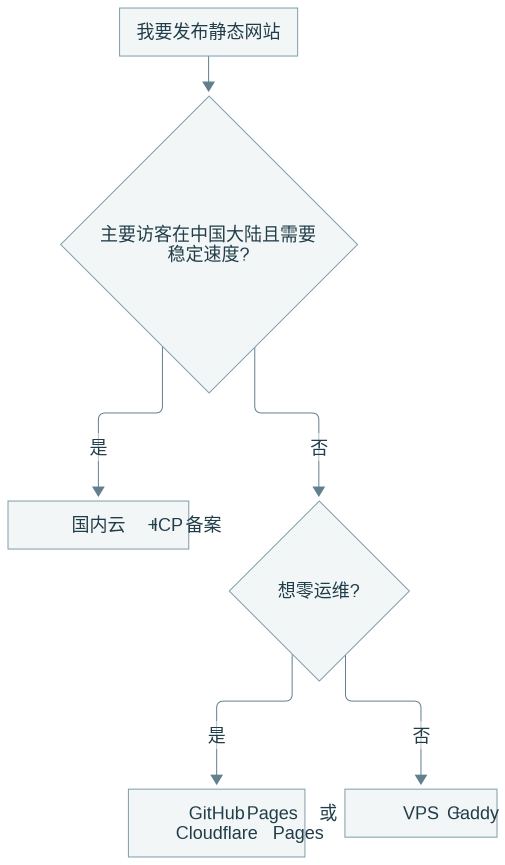
5. Hands-On Walkthrough: Publishing Tutorials with GitHub Pages
[Verified: GitHub Pages Quickstart]
- Create a repository and push your Markdown files (you can use a static site generator such as MkDocs, VitePress, or Docusaurus to compile Markdown into HTML pages).
- In your repository, go to Settings → Pages and select the publishing source (a branch or GitHub Actions).
- Wait for the build to complete, then visit
https://username.github.io/repository-name/. - Bind a custom domain: enter your domain in the Pages settings → add a CNAME record (for a subdomain) or the platform's designated A records (for an apex domain) in your DNS console → check Enforce HTTPS.
- [Verified] GitHub recommends verifying your domain in account settings first to prevent subdomain takeover.
💡 Rendering Mermaid diagrams: GitHub natively renders Mermaid blocks in Markdown previews, whereas static site generators generally require enabling a Mermaid plugin [Community Consensus]. That is also why these tutorials stick to widely supported diagram types such as
flowchartandsequenceDiagram.
6. Mainland China Hosting: ICP Filing
[Verified] Serving a public website from servers or CDN nodes located inside Mainland China requires an ICP filing (and a commercial ICP license for revenue-generating sites). Filing records can be queried through the MIIT ICP/IP Address/Domain Information Filing Management System.
[Community Consensus]
- Filings are normally submitted through the cloud provider where you purchased the server or CDN, requiring personal/corporate identity verification, domain real-name registration, and often facial verification.
- During the filing review period, the website generally cannot be made publicly accessible.
- Hosting outside Mainland China does not require a Mainland ICP filing, though reachability and latency from within Mainland China are not guaranteed.
- Sites covering news, publishing, healthcare, or finance may require prior regulatory approval [Unverified: consult the relevant regulatory authority's current rules].
7. HTTPS and Security
- Managed static hosts normally provision HTTPS certificates automatically; on self-hosted servers, use Caddy or Let's Encrypt [Verified: letsencrypt.org].
- Never embed secret keys in a static site: any API key placed inside frontend JavaScript is effectively public.
- If your static site needs to call an AI API, route requests through a backend service (such as Cloudflare Workers or a self-hosted gateway) that holds the API key server-side.
8. Unverified Items and Practical Caveats
- Cloudflare's long-term positioning between Pages and Workers Static Assets (official guidance may evolve over time).
- Exact ICP filing workflows, timelines, and document checklists (which vary by cloud vendor and province).
- Reachability of overseas static hosting platforms from within Mainland China.
Hands-On Practice: Step-by-Step Verification
Goal: Get an accessible static site online first, then attach a custom domain and enable HTTPS.
The sections above covered core concepts, DNS records, and hosting options. The checklist below focuses on execution order, verification points, and troubleshooting during your first deployment. Run one step at a time and confirm the expected outcome before moving on.
-
Verify locally that your generated build output folder contains
index.html, stylesheets, and images; raw Markdown files typically need to be compiled into HTML first. -
Upload or deploy the build artifacts following your hosting platform's documentation, then open the default platform URL and test both the homepage and at least one deep link.
-
Open DNS management in your domain registrar console. Keep existing essential records intact, and add the apex or
wwwrecords exactly as instructed by your hosting provider. -
Return to the hosting platform to complete domain ownership verification and custom domain binding. Never copy placeholder example IPs instead of the live records provided by your host.
-
Wait until DNS queries return the expected target values, then request or wait for the HTTPS certificate to issue. Finally, test HTTP-to-HTTPS redirection, the HTTPS homepage, and deep links.
-
If something fails, check DNS resolution, server response, and certificate domain coverage one layer at a time rather than changing all three configurations simultaneously.