Evidence Tiers: [Verified] = Backed by official documentation or trusted primary sources; [Community Consensus] = Broad practitioner experience not formally confirmed by official docs; [Unverified / Speculative] = Hypothesis or not yet verified—treat with caution.
Official manual: GNU Bash Reference Manual; you can inspect usage for most commands locally with
man <command>or<command> --help. [Verified]
1. Where Bash Is Used and Why It Matters
[Community Consensus] Linux servers (see VPS Getting Started: SSH Connection, User Accounts, Firewall, and Routine Maintenance), macOS terminals, WSL, Docker containers, and CI/CD pipelines all rely on Bash. Most shell commands executed by coding agents are also Bash commands—being able to read them is essential for judging whether an agent's command approval prompt is safe (see "Approval Prompts Rely on Your Judgment" in AI Coding Agent Selection Guide: Tools, Permissions, and Workflows).
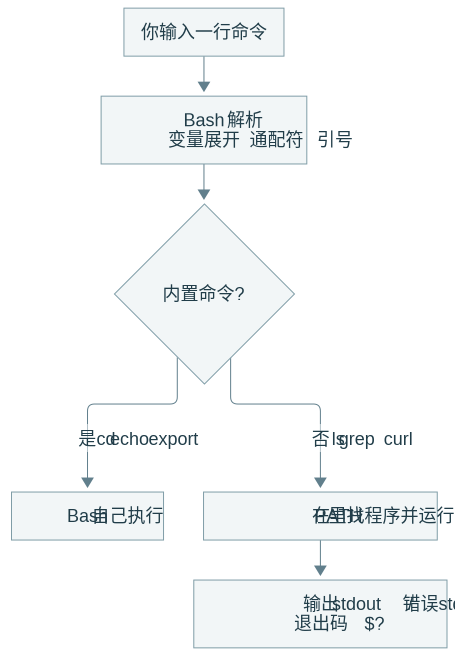
2. Most Frequently Used Commands
| Category | Commands | Purpose |
|---|---|---|
| Navigation | pwd, cd <dir>, ls -la |
Print working directory, change directory, list files (including hidden dotfiles) |
| File operations | cp, mv, mkdir -p, touch, rm |
Copy, move/rename, create directories recursively, create empty file, remove |
| Viewing files | cat, less, head -n 20, tail -f log |
Print file contents, page through files, view first lines, follow live log output |
| Searching | grep -rn "keyword" ., find . -name "*.py" |
Search file contents recursively, search filenames (or use faster rg) |
| Permissions | chmod +x run.sh, chown |
Change file mode/executable bit, change file ownership |
| Processes | ps aux, top / htop, kill PID |
List running processes, monitor resource usage, terminate a process |
| Networking | curl -I URL, ping, ss -tlnp |
Send HTTP requests, test reachability, inspect listening TCP ports |
| Disk usage | df -h, du -sh * |
Check filesystem free space, check size of each item in current folder |
| Archives | tar -czf a.tar.gz dir/, tar -xzf a.tar.gz |
Create and extract .tar.gz archives |
| Help | man ls, ls --help |
Read manual pages and built-in flag summaries |
3. Shell Script Syntax Quick Reference
#!/usr/bin/env bash
set -euo pipefail          # Exit on error, error on unset vars, fail pipe if any stage fails

name="world"               # Assignment: NO spaces around the '=' sign!
echo "Hello, ${name}"      # Double quotes expand variables; single quotes do not

# Conditionals
if [[ -f "config.json" ]]; then
  echo "Config file exists"
elif [[ -d "config" ]]; then
  echo "It is a directory"
else
  echo "Does not exist"
fi

# Loops
for f in *.txt; do
  echo "Processing $f"
done

# Functions
greet() {
  local who="$1"           # $1 is the first positional argument
  echo "Hi, $who"
}
greet "Alice"

# Command substitution and exit codes
today=$(date +%F)
if grep -q "ERROR" app.log; then echo "Errors found"; fi
echo "Exit code of previous command: $?"
| Operator / Symbol | Meaning |
|---|---|
> / >> |
Redirect stdout to overwrite a file / append to a file |
2>&1 |
Redirect stderr (file descriptor 2) into stdout (file descriptor 1) |
| |
Pipe: pass stdout of the left command into stdin of the right command |
&& / || |
Run next command only if previous succeeded (exit 0) / only if previous failed |
$VAR / "$VAR" |
Variable expansion; always wrap in double quotes to prevent word splitting on spaces |
~ |
Current user's home directory |
* ? |
Filename globbing wildcards |
4. High-Risk Command Checklist (Essential When Reviewing Agent Prompts)
| Command Pattern | Risk | Tier |
|---|---|---|
rm -rf /, rm -rf ~, rm -rf $VAR/ (when VAR might be empty) |
Recursively deletes the entire filesystem or home directory | Community Consensus |
chmod -R 777 |
Grants read/write/execute permissions to all users—severe security risk | Community Consensus |
curl ... | bash / | sh |
Executes a remote script directly without inspection (use only for trusted official installers) | Community Consensus |
> important_file |
Truncates/overwrites the target file immediately | Community Consensus |
dd if=... of=/dev/sdX |
Overwrites a raw block device / entire disk | Community Consensus |
git push --force, git reset --hard |
Overwrites remote commit history or permanently discards uncommitted local work | Community Consensus |
Any command starting with sudo |
Executes with root/administrator privileges | Community Consensus |
Reading ~/.ssh, .env, or *credentials* and sending them over the network |
Credential and secret exfiltration | Community Consensus |
5. Reading Common Bash Errors
| Error Message | Meaning | How to Fix |
|---|---|---|
command not found |
Program is not installed or its directory is not in PATH |
Install the package; check its location with which <command> |
No such file or directory |
Target file or directory path does not exist | Run pwd to check your current directory; verify spelling and exact letter case (Linux paths are case-sensitive) |
Permission denied |
Insufficient permissions to read, write, or execute | Scripts executed directly need chmod +x; check file ownership; do not reflexively prepend sudo |
syntax error near unexpected token |
Shell syntax error | Common causes: missing then or fi in an if block, or Windows \r line endings |
$'\r': command not found |
Script file was saved with Windows CRLF line endings | Run dos2unix script.sh or switch line endings to LF in your code editor |
bad substitution |
Running Bash-specific syntax under /bin/sh |
Run explicitly with bash script.sh |
unbound variable |
Referencing an unset variable while set -u is active |
Initialize the variable or supply a default with ${VAR:-default} |
Address already in use |
Target TCP/UDP port is already bound by another process | Use ss -tlnp to identify the process holding the port |
Killed |
Process was terminated by the OS (often by the Linux OOM killer when out of memory) | Inspect dmesg logs and reduce memory consumption |
Exit codes: 0 indicates success, and any non-zero value indicates failure; 127 typically means command not found, 126 means found but not executable (permission error), and 130 means terminated by Ctrl+C (SIGINT). [Verified: GNU Bash Manual · Exit Status]
6. Items Pending Verification & Practical Caveats
- macOS uses
zshas its default interactive login shell, which has minor differences from Bash; BSD command flags on macOS also differ from GNU coreutils on Linux. - Pre-installed command-line tools (such as
rgorhtop) vary across Linux distributions.
Hands-On Practice: Step-by-Step Verification
Practice Goal: Run a small script inside a dedicated practice folder and distinguish standard output from the command exit code.
The sections above cover concepts, settings, and working examples. The steps below focus on execution order, checkpoints, and output verification during your first hands-on run; refer back to the corresponding section whenever you need exact parameters. Enter commands one at a time and check each result before proceeding.
-
First confirm that your terminal session is actually running Bash (for example, a Linux terminal, WSL, or Git Bash on Windows); Windows PowerShell is not Bash.
Additional note: Practice these commands inside an actual Linux, WSL, or Git Bash environment. Always check the window title, shell prompt, and current working directory separately.
-
Run
pwdto see your current path, create a dedicated practice directory,cdinto it, and runlsto verify the folder is empty.Additional note: The longer script in Section 3 combines several syntax demos and references sample filenames like
config.json,config, andapp.log; do not copy and run that entire block blindly before creating your practice files. -
Use a text editor to save a minimal greeting script named
hello.shwith LF line endings, then run it viabash hello.sh.Additional note: For your first script, put only a single line—
echo "Hello, Bash!"—and save it as UTF-8 with LF line endings. Runningbash hello.shshould printHello, Bash!and does not require runningchmod +xfirst. -
Immediately after the script finishes, run
echo $?to inspect its exit code; if you run another command in between,$?will report that intermediate command's exit code instead.Additional note: A successful greeting script returns
0. Note that in Section 3, runningecho $?afterif grep ...; then ...; fireports the exit status of theifcompound statement rather than rawgrep; to testgrep's own exit code, rungrepby itself and checkecho $?immediately afterward, distinguishing "no match found" (exit 1) from an execution error (exit 2). -
Practice quoting with a filename that contains a space: create the file, view its contents, and copy it to a new practice filename without deleting any real user data.
Additional note: For example, create a file named
practice notes.txtinside your practice folder, read it withcat "practice notes.txt", and compare what happens with and without double quotes. -
Whenever you review a command requested by an AI agent, verify four things in order: the working directory, the expanded target paths, whether any file will be overwritten, and whether data will be sent over the network.
Additional note: Treat the High-Risk Command Checklist in Section 4 as a review guide for auditing agent actions—never as a list of commands to test on your machine. Remember that
>overwrites the target file while>>appends to it.