Source reliability tiers: [Verified] = backed by official documentation or trusted primary sources; [Community Consensus] = widely observed by community users but not officially confirmed; [Unverified / Speculative] = inferred or not yet independently verified — treat with caution.
1. Multimodal Means Handling More Than One Modality
| Modality | Input (Understanding) | Output (Generation) |
|---|---|---|
| Text | Virtually all LLMs | Virtually all LLMs |
| Image | Multimodal LLMs | Image generation models, or multimodal models with native image output |
| Audio | Speech-enabled multimodal models, ASR | TTS engines, native voice conversation models |
| Video | Selected multimodal models | Video generation models (see AI Video Editing & Generation: Assets, Workflows, and Publishing Checks) |
[Community Consensus] When a model claims "multimodal support," it often means image input only — not necessarily video input, and rarely video generation. Always check whether a modality is supported on the input (understanding) side or the output (generation) side.
2. How Models "Watch" a Video
[Verified] Taking the Gemini API as a documented example, official documentation explains that uploaded video is sampled into image frames at a set rate (by default roughly 1 frame per second) and processed alongside the audio track, allowing you to ask questions tied to specific timestamps. Source: Gemini API Video understanding
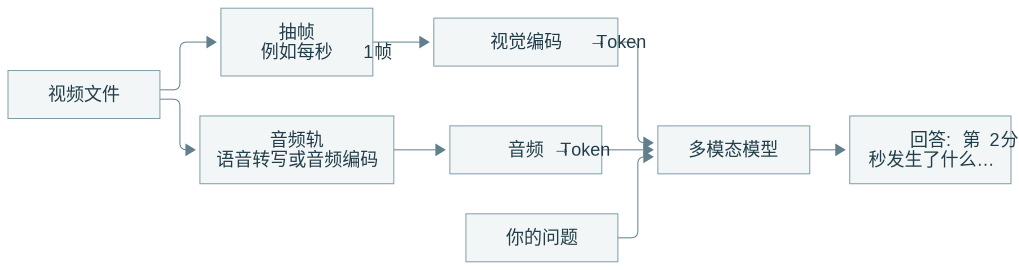
2.1 Practical Limitations That Follow from Frame Sampling [Community Consensus]
| Limitation | Why It Happens | Workaround |
|---|---|---|
| Misses split-second visual flashes | Events occurring between sampled frames are never seen | Increase the frame sampling rate (if supported by the API) or trim down to the exact sub-clip |
| Long videos get expensive fast | Every sampled frame consumes tokens | Trim out irrelevant sections before uploading |
| Struggles with tiny on-screen text | Sampled frames are downscaled to bounded resolutions | Take a high-resolution still screenshot of key frames and query those separately |
| Inaccurate on fine high-speed motion | Low frame rates discard subtle motion dynamics | Use specialized high-FPS action recognition models |
3. Fallback Pipeline When Your Model Cannot Accept Video Directly
Just like bridging vision for text-only models in Adding Vision to Text-Only Models: OCR, Image Captions, and Vision Tools, you can split a video into sampled frames plus an audio transcript:
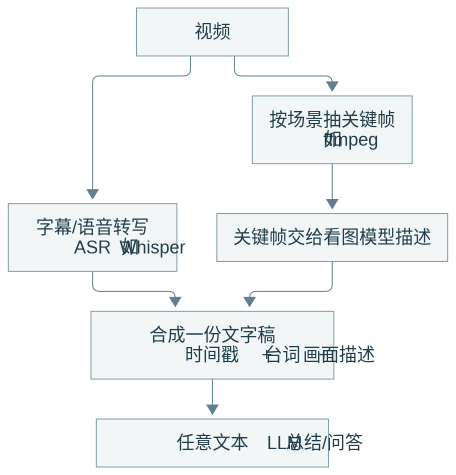
# Example: extract 1 frame every 10 seconds (requires ffmpeg installed)
ffmpeg -i input.mp4 -vf fps=1/10 frames/frame_%04d.png
[Verified: FFmpeg Filter Documentation]
4. Common Use Cases and Suitability
| Use Case | Suitability | Notes |
|---|---|---|
| Summarizing lectures or recorded meetings | ⭐⭐⭐⭐ | Most information lives in the speech track; ASR transcription + LLM summary works well |
| Locating the timestamp where a visual event occurs | ⭐⭐⭐ | Best handled by native video-understanding models |
| Analyzing athletic form or rapid micro-movements | ⭐⭐ | Severely constrained by 1 FPS sampling rates |
| Real-time continuous CCTV monitoring | ⭐ | Requires dedicated computer-vision pipelines and strict compliance with privacy laws |
5. Copyright and Privacy
- Uploading third-party videos for analysis may implicate copyright and platform terms of service; videos containing identifiable faces or voices fall under personal data protection laws. [Community Consensus; always comply with applicable local regulations]
6. Unverified Items and Practical Caveats
- Maximum video duration, file size, and frame-sampling defaults vary by provider and model version; this guide cites the Gemini API docs as one concrete example.
- Not all multimodal endpoints process the audio track alongside video frames — verify each provider's documentation.
Hands-On Practice: Step-by-Step Verification
Goal: Produce a timestamped analysis of a short video clip and verify each cited timestamp against the source playback.
Follow the steps below in order on a short video clip that you own or have rights to use.
-
Pick a short video clip you have permission to use, write down one specific question you want answered, and note the total duration of the clip.
-
Before running the FFmpeg frame-extraction command above, verify
ffmpeg -versionin your terminal and create theframes/output folder first. -
Extract sampled keyframes and an audio transcript separately while preserving timestamps; keep visual frame descriptions, spoken transcript lines, and your own inferences clearly separated.
-
Pass the extracted materials and your question to the model, and instruct it to cite the exact timestamp for every claim it makes.
-
Scrub to each cited timestamp in your video player to verify the claim; mark any timestamp that does not match as unconfirmed, keeping in mind that rapid actions between sampled frames may be missed.