Evidence Tiers: [Verified] = Backed by official documentation or trusted primary sources; [Community Consensus] = Broad practitioner experience not formally confirmed by official docs; [Unverified / Speculative] = Hypothesis or not yet verified—treat with caution.
Official documentation: Microsoft Learn · PowerShell. [Verified]
1. What PowerShell Is and How It Differs from Bash
[Verified] PowerShell is Microsoft's cross-platform command-line shell and scripting language. Windows ships with built-in Windows PowerShell 5.1, while the modern cross-platform edition is PowerShell 7.x (launched via the pwsh command). Source: Differences between Windows PowerShell 5.1 and PowerShell 7.x
| Bash | PowerShell | |
|---|---|---|
What flows through a pipe (|) |
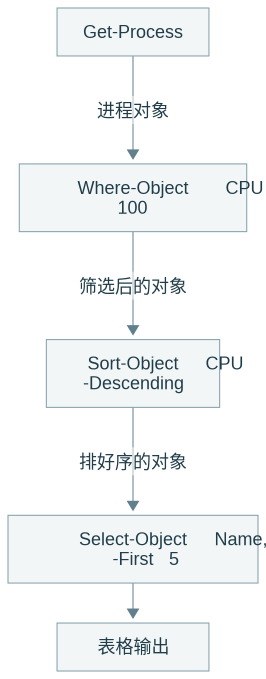
Plain text streams | Structured objects (data with typed properties and methods) |
| Command naming | Short abbreviations (ls, grep) |
Verb-Noun pairs (Get-ChildItem, Select-String) |
| Case sensitivity | Case-sensitive | Command and parameter names are case-insensitive |
| Variables | name=value |
$name = "value" |
2. Common Cmdlets (Including Standard Aliases)
| Cmdlet | Common Aliases | Purpose |
|---|---|---|
Get-Location |
pwd |
Show current working directory |
Set-Location |
cd |
Change current working directory |
Get-ChildItem |
ls, dir |
List directory items (-Recurse for subdirectories, -Force to include hidden items) |
Copy-Item / Move-Item / Remove-Item |
cp / mv / rm |
Copy / move / delete files and directories |
New-Item -ItemType Directory |
mkdir |
Create a new directory |
Get-Content / Set-Content / Add-Content |
cat |
Read / overwrite / append file content |
Select-String |
(similar to grep) |
Search text patterns in files or strings |
Get-Process / Stop-Process |
ps / kill |
Inspect or terminate running processes |
Invoke-WebRequest / Invoke-RestMethod |
iwr / irm |
Send HTTP requests (irm automatically parses JSON responses into objects) |
Get-Command |
gcm |
Locate a cmdlet, alias, or executable on PATH |
Get-Help <Cmdlet> -Examples |
help |
View manual page and practical usage examples |
Get-Member |
gm |
Inspect all properties and methods on an object (essential for learning PowerShell) |
3. Script Syntax Quick Reference
# Variables and strings
$name = "world"
Write-Output "Hello, $name"          # Double quotes expand variables; single quotes do not

# Arrays and hashtables
$nums = @(1, 2, 3)
$user = @{ Name = "Bob"; Age = 25 }
$user.Name

# Conditionals (comparison operators: -eq -ne -gt -lt -ge -le -like -match)
if ($nums.Count -gt 2) {
    "More than two"
} elseif ($nums.Count -eq 0) {
    "Empty"
} else {
    "Other"
}

# Loops
foreach ($n in $nums) { "Number $n" }
$nums | ForEach-Object { $_ * 2 }    # $_ refers to the current object in the pipeline

# Functions
function Get-Greeting {
    param([string]$Who = "you")
    "Hi, $Who"
}
Get-Greeting -Who "Alice"

# Error handling
try {
    Get-Content "missing.txt" -ErrorAction Stop
} catch {
    Write-Warning "Read failed: $($_.Exception.Message)"
}
⚠️ Most common pitfall: In PowerShell, > and < are output redirection operators, not numeric comparisons; always use -gt, -lt, -eq, etc. for comparisons. [Verified: about_Comparison_Operators]
4. Execution Policies and Script Restrictions
[Verified] On Windows, PowerShell's Execution Policy controls conditions under which scripts are allowed to load and run; Microsoft explicitly documents it as a safety feature to prevent accidental execution, not a security boundary. Source: about_Execution_Policies
Get-ExecutionPolicy -List
# Relax policy for CurrentUser only to RemoteSigned (local scripts run; downloaded scripts require a signature)
Set-ExecutionPolicy -Scope CurrentUser RemoteSigned
[Community Consensus] Avoid setting Unrestricted or Bypass permanently out of convenience; only run .ps1 scripts from sources you understand and trust.
5. Reading PowerShell Error Messages
Get-Content : Cannot find path 'C:\work\missing.txt' because it does not exist.
At line:1 char:1
+ Get-Content missing.txt
+ ~~~~~~~~~~~~~~~~~~~~~~~
    + CategoryInfo          : ObjectNotFound: (C:\work\missing.txt:String) [Get-Content], ItemNotFoundException
    + FullyQualifiedErrorId : PathNotFound,Microsoft.PowerShell.Commands.GetContentCommand
| Component | Meaning |
|---|---|
| First line | Which command failed + human-readable explanation |
At line:1 char:1 |
Script/command line and character position |
CategoryInfo |
Error category (e.g., ObjectNotFound, PermissionDenied) and underlying .NET exception type |
FullyQualifiedErrorId |
Exact diagnostic ID suitable for searching documentation |
PowerShell 7 uses a concise single-line error view by default; run
Get-Errorat any time to inspect the full diagnostic record of the most recent error. [Verified: Get-Error]
| Error Message | Cause | How to Fix |
|---|---|---|
...cannot be loaded because running scripts is disabled on this system |
Blocked by Execution Policy | See Section 4 above |
The term 'xxx' is not recognized as the name of a cmdlet... |
Command does not exist, is not installed, or is not in PATH |
Check with Get-Command xxx |
Cannot find path ... |
Invalid file or directory path | Check your current working directory and wrap paths containing spaces in quotes |
Access to the path ... is denied |
Insufficient permissions or file lock | Check whether another program has the file open; elevate to Administrator only when genuinely necessary |
Missing closing '}' / Unexpected token |
Syntax error | Check for unmatched braces, parentheses, or quotation marks |
A parameter cannot be found that matches parameter name |
Invalid flag name or parameter not supported in your PowerShell version | Run Get-Help <Cmdlet> -Full |
| Pasting a Bash one-liner into PowerShell fails | Different shell syntax (e.g., export VAR=1, or && in Windows PowerShell 5.1) |
Rewrite using PowerShell syntax such as $env:VAR = "1" |
6. Bash ↔ PowerShell Quick Comparison
| Task | Bash | PowerShell |
|---|---|---|
| Set environment variable (current session) | export KEY=value |
$env:KEY = "value" |
| Search text recursively | grep -rn foo . |
Get-ChildItem -Recurse | Select-String foo |
| Follow end of a log file | tail -f log |
Get-Content log -Wait -Tail 20 |
| Check where a command lives | which git |
Get-Command git |
| Download a file | curl -LO URL |
Invoke-WebRequest URL -OutFile file |
7. Items Pending Verification & Practical Caveats
- Detailed differences between Windows PowerShell 5.1 and PowerShell 7.x (such as
&&pipeline chain operators and default text encoding) are not exhaustively listed here. - In corporate environments, Execution Policies may be enforced centrally via Group Policy.
Hands-On Practice: Step-by-Step Verification
Practice Goal: Verify your PowerShell version, read a file in a practice directory, and observe how object pipelines filter properties.
The sections above cover concepts, settings, and working examples. The steps below focus on execution order, checkpoints, and output verification during your first hands-on run; refer back to the corresponding section whenever you need exact parameters. Enter commands one at a time and check each result before proceeding.
-
Open PowerShell from the Start menu (without running as Administrator) and execute
$PSVersionTable.PSVersionto see whether you are on 5.1 or 7.x.Additional note: Windows PowerShell 5.1 and PowerShell 7.x differ in supported syntax. Also note that while
%USERPROFILE%and%LOCALAPPDATA%work in the File Explorer address bar andcmd.exe, inside PowerShell you reference them as$env:USERPROFILEand$env:LOCALAPPDATA. -
Run
Get-Locationto check your current folder, create a dedicated practice folder, and switch into it withSet-Location.Additional note: The target folder must exist before you can
Set-Locationinto it. Always check your current working directory first so you do not scatter test files across your Desktop, Downloads, or user profile root. -
Save a small text file named
notes.txtusing a text editor, then read it back withGet-Content -LiteralPath ./notes.txtand verify the printed lines.Additional note:
-LiteralPathtreats the path string literally so characters like square brackets ([ ]) are not interpreted as wildcard patterns. -
Run
Get-Process, then pipe it intoSelect-Object Name,Id -First 5and observe how the output is narrowed down to specific object properties.Additional note: The full pipeline is
Get-Process | Select-Object Name,Id -First 5. Comparing the output before and after piping demonstrates that PowerShell pipes pass structured objects with named properties likeNameandIdrather than raw text lines. -
Save a minimal
.ps1script and invoke it from the current directory using.\hello.ps1; if your machine's Execution Policy is managed by an organization, follow your administrator's policy.Additional note: For your first script, put only
Write-Output "Hello, PowerShell!", which should printHello, PowerShell!. Note that the longer script in Section 3 prints several values and intentionally tries to readmissing.txtwith-ErrorAction Stopso execution jumps into thecatchblock. -
When a command fails, read the error message first and check the path, quoting, parameter names, and PowerShell version; when calling external native executables, inspect
$LASTEXITCODEas well.Additional note: PowerShell cmdlet error records and external process exit codes are tracked separately—do not rely solely on whether red text appeared on screen. Treat destructive cmdlets in Section 2 (
Remove-Item,Stop-Process) as reference material while focusing your first practice on reading files and filtering objects.