Evidence Tiers: [Verified] = Backed by official documentation or trusted primary sources; [Community Consensus] = Broad practitioner experience not formally confirmed by official docs; [Unverified / Speculative] = Hypothesis or not yet verified—treat with caution.
Official documentation: Microsoft Learn · C#, .NET API Browser. [Verified]
1. Where Is C# Used?
[Community Consensus] C# is a modern object-oriented language led by Microsoft and running on the .NET runtime. Common uses include game scripting in Unity and Godot (.NET edition) (see Game Engine Selection Guide: Target Platforms, Learning Curve, and Licensing), Windows desktop applications, web backends (ASP.NET Core), and cross-platform command-line utilities.
2. Hello World
dotnet new console -o HelloApp   # Requires .NET SDK installed
cd HelloApp
dotnet run
// Program.cs (top-level statements)
using System;
using System.Collections.Generic;

var names = new List<string> { "Alice", "Bob" };
foreach (var n in names)
{
    Console.WriteLine($"Hello, {n}!");
}
[Verified] For details on dotnet new and dotnet run, see the .NET CLI documentation.
3. Syntax Quick Reference
| Topic | Example | Notes |
|---|---|---|
| Variables | int a = 1; var s = "hi"; |
var lets the compiler infer the local variable type |
| Nullable types | string? name = null; |
With nullable reference types enabled, the compiler warns about potential null dereferences |
| String interpolation | $"Age {age}" |
— |
| Conditionals & loops | if, switch, for, foreach, while |
C-family control flow syntax |
| Methods | int Add(int x, int y) => x + y; |
Expression-bodied member syntax |
| Classes | public class Dog { public string Name { get; set; } } |
Auto-implemented properties with get/set |
| Records | public record Point(int X, int Y); |
Immutable value-oriented data type |
| Interfaces | interface IShape { double Area(); } |
— |
| Generics | List<T>, Dictionary<TKey, TValue> |
— |
| Lambdas + LINQ | nums.Where(n => n > 2).Select(n => n * 2) |
Declarative collection querying |
| Async / await | async Task<string> LoadAsync() { await ...; } |
Asynchronous I/O |
| Exceptions | try { } catch (IOException ex) { } finally { } |
— |
4. Common .NET APIs
| Namespace | Common Types & Methods | Purpose |
|---|---|---|
System |
Console.WriteLine, Math.Max, DateTime.Now, int.Parse / int.TryParse |
Core primitives and console I/O |
System.Collections.Generic |
List<T>, Dictionary<K,V>, HashSet<T>, Queue<T> |
Generic collections |
System.Linq |
Where, Select, OrderBy, First, FirstOrDefault, Any, Count |
LINQ queries |
System.IO |
File.ReadAllText, File.WriteAllText, Path.Combine, Directory.Exists |
Files and directories |
System.Text.Json |
JsonSerializer.Serialize / Deserialize |
JSON serialization |
System.Net.Http |
HttpClient |
HTTP requests |
System.Threading.Tasks |
Task, Task.WhenAll |
Asynchronous programming |
Unity-specific APIs (not part of the standard .NET Base Class Library): MonoBehaviour, Start(), Update(), GetComponent<T>(), Debug.Log()—see the Unity Scripting API Reference. [Verified]
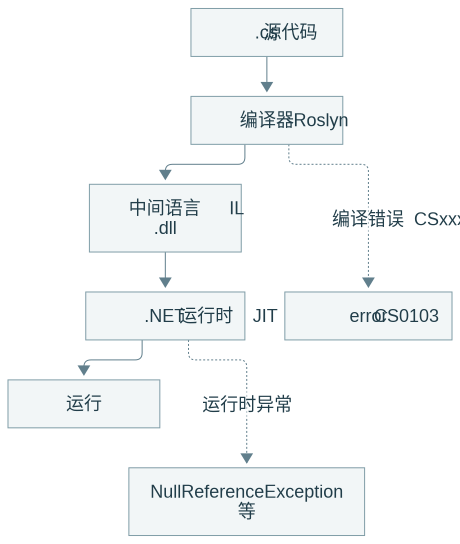
5. Reading Compiler and Runtime Errors
5.1 Compiler Errors: Look for the CSxxxx Code
Program.cs(7,13): error CS0103: The name 'conut' does not exist in the current context
| Component | Meaning |
|---|---|
Program.cs(7,13) |
Source file (line, column) |
CS0103 |
Compiler diagnostic code—searchable directly in Microsoft's documentation |
| Code | Meaning | Common Cause |
|---|---|---|
| CS0103 | Name does not exist in current context | Typo, undeclared variable, or out-of-scope identifier |
| CS0246 | Type or namespace name could not be found | Missing using directive or missing NuGet package / assembly reference |
| CS1002 | ; expected |
Missing semicolon at end of statement |
| CS0029 | Cannot implicitly convert type | Assigning incompatible types without explicit conversion |
| CS1061 | Type does not contain a definition for member | Misspelled method/property name or wrong receiver type |
| CS0161 | Not all code paths return a value | An if/else branch is missing a return statement |
| CS8618 / CS8602 | Nullability warnings | Non-nullable property left uninitialized or dereferencing a possibly null reference |
Source: C# Compiler Messages Reference [Verified]
5.2 Runtime Exceptions
| Exception | Meaning | Common Cause |
|---|---|---|
NullReferenceException |
Accessing a member on a null reference |
Very common in Unity: forgetting to assign a reference in the Inspector, or GetComponent returning null |
IndexOutOfRangeException / ArgumentOutOfRangeException |
Index out of bounds | Invalid array or list index |
InvalidOperationException |
Operation invalid for the object's current state | For example, modifying a collection while iterating over it with foreach |
FormatException |
Invalid input string format | Calling int.Parse("abc"); prefer int.TryParse for user input |
FileNotFoundException / DirectoryNotFoundException |
File or directory path not found | Relative path resolved against an unexpected working directory |
KeyNotFoundException |
Key does not exist in dictionary | Use TryGetValue for safe lookups |
Reading a Stack Trace: The exception type and message appear at the top, followed by frames in the format at Namespace.Class.Method() in File:line N—scan down from the top to find the first line belonging to your own source file. [Community Consensus]
6. Tips for Collaborating with AI [Community Consensus]
- Tell the AI your exact runtime environment—for example, ".NET 8 console app" versus "Unity 6
MonoBehaviourscript"—because available APIs and lifecycle rules differ significantly. - In Unity, errors appear in the Console window (double-clicking jumps to the offending line); copy both the full error message and the stack trace below it when asking AI for help.
7. Items Pending Verification & Practical Caveats
- The C# language version supported by Unity may lag behind the latest standalone .NET SDK, so newer syntax features may not always be available inside Unity projects.
- Whether nullable reference types (
<Nullable>enable</Nullable>) are enabled by default depends on your project template and SDK version.
Hands-On Practice: Step-by-Step Verification
Practice Goal: Create and run a console project using the .NET SDK.
The sections above cover concepts, settings, and working examples. The steps below focus on execution order, checkpoints, and output verification during your first hands-on run; refer back to the corresponding section whenever you need exact parameters. Enter commands one at a time and check each result before proceeding.
-
After installing the .NET SDK, open a fresh terminal window and run
dotnet --version. Having only the .NET Runtime installed (without the SDK) will not allow you to create projects withdotnet new.Additional note:
dotnet newscaffolds a project,dotnet buildcompiles it, anddotnet runbuilds and runs it; all three require the .NET SDK rather than a runtime-only package. -
In a clean practice directory, run the
dotnet new consolecommand from Section 2, thencdintoHelloApp.Additional note: The full command is
dotnet new console -o HelloApp, where-ospecifies the output folder. Once project creation succeeds, runcd HelloApp. -
Open
Program.cs, replace the starter template with the Section 2 example code, and save the file; do not paste UnityMonoBehaviourscripts into a standard .NET console project.Additional note: This replaces the single-line template greeting. Although
dotnet runis shown right above theProgram.cssnippet in Section 2, save the updated list code first if you want to see the two-line greeting output. -
Run
dotnet buildby itself first to confirm there are zero compiler errors, then rundotnet run.Additional note: If the build fails, fix the first
error CSxxxxreported before attempting to run the project. -
Confirm that two greeting lines appear for Alice and Bob. Edit the list of names, save
Program.cs, and rundotnet runagain to verify the change.Additional note: The output should be
Hello, Alice!followed byHello, Bob!. HereList<string>holds the names,foreachloops through each element, and the interpolated string$"Hello, {n}!"formats each line. -
Use the
CSxxxxcode to diagnose compile-time errors, and use the stack trace to diagnose runtime exceptions. For Unity projects, inspect the Unity Console and Inspector component references separately.Additional note: Ellipses (
...) and undeclared variables likenumsin the quick-reference table are snippet placeholders that cannot be pasted verbatim intoProgram.cs. When debugging Unity scripts, always check Unity Console logs, Inspector references, and your Unity Editor version together.